
The checkout process at the Point of Sale (POS) triggers an interaction with the cashier in order to gather customer information and determine if the customer wants a digital receipt. This section has example screenshots and explanations of what is required and the expected behavior of the POS UI.
The following information should be configurable, either stored and changeable as part of the POS setup in a configuration file, or via a setup screen:
In order to make the integration configurable (per merchant, per store, per register), one or more setup screens should be created like the below examples:
General Settings
The following information is provided by flexEngage and should be configurable without modifying source code (i.e. changes in a setup screen or in a properties file):
https://api.flexreceipts.com/ws/rest/v1).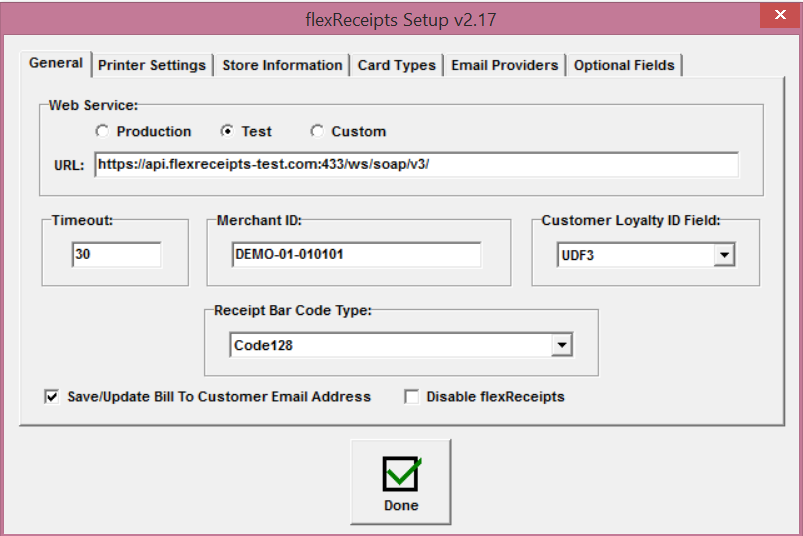
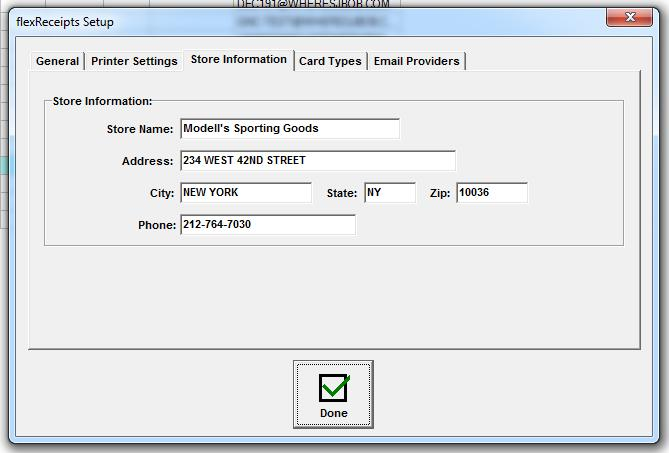
Store Information
If the POS does not already store the Store Name and Store Address information in a compatible format, you may need to setup a Store Information configuration screen.
Email Providers
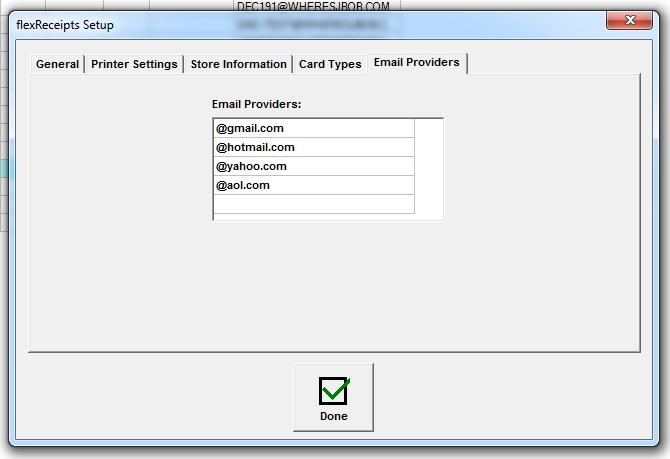
The email domain presets should be configurable and allow the store to add additional common domain names that are appended when pressed (e.g., @gmail.com, @hotmail.com, @yahoo.com, @aol.com, etc). Up to five configurable email domain presets should be available to speed email address entry.
When the customer is offered a digital receipt, a dialog box (such as the example below) should be presented at the POS to collect their email address and receipt option.
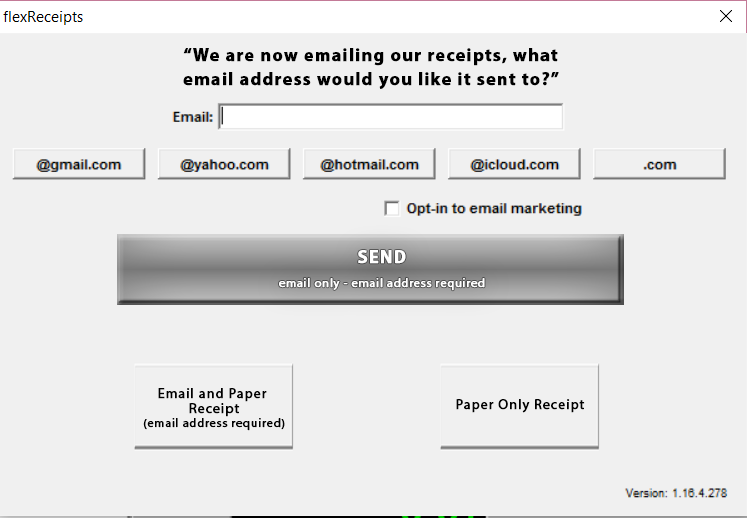
Note: You will get a higher adoption rate if customers are told that you now email your receipts rather than just asking if they would like an email receipt.
Populate the email field if the POS has the customer’s email address on file for verification by the customer. If the customer changes the pre-populated email address, you should update the POS customer record (if applicable) and send the updated email with the Request web service message.
The email address structure should be validated before accepting the email in this form:
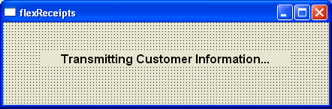
When transmitting information to flexEngage an information box should be presented at the POS:
Upon a successful response from Response web service message (i.e., the digital receipt was successfully sent), a confirmation box should be presented at the POS to notify the cashier or customer:
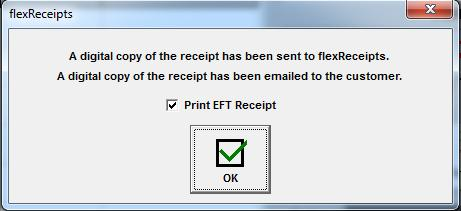
Note: Paper Only transactions should NOT display a confirmation message about the receipt being sent to flexEngage.
In the event that the flexEngage service is unavailable (e.g., network connection issues, power outage) or the digital receipt cannot be processed, an error message is displayed at the POS to notify the cashier or customer:
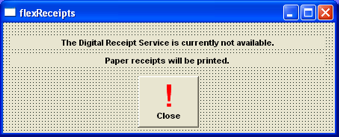
NOTE: flexEngage sends detailed error codes and error messages that will greatly reduce troubleshooting time. Descriptive exception codes and error messages should be included in the error dialog box. flexEngage will require the error code, message, and referenceId returned in order to troubleshoot issues in a timely manner. See Common Error Responses in the main guide.